
Set up the DevTools panel
Add two plugins and a Lit panel appears inside Vite DevTools with a timeline, a component tree and an update explainer. Dev-only and off by default.
Install @vitejs/devtools
Section titled “Install @vitejs/devtools”Vite DevTools is the browser overlay from @vitejs/devtools that hosts plugin
panels. The Lit panel is one of those panels, so the overlay has to be there
first.
npm install -D @vitejs/devtoolsEnable the panel
Section titled “Enable the panel”timeline: true injects the recording runtime into the page. DevTools()
provides the host the panel docks into. You need both.
import {defineConfig} from 'vite';import {litPlugin} from '@oddsquad/vite-plugin-lit';import {DevTools} from '@vitejs/devtools';
export default defineConfig({  plugins: [litPlugin({timeline: true, sourceOverlay: true}), DevTools()],});
sourceOverlay: true is optional. The Components tab needs it to pick an
element by pointing at it on the page.
Prefer to leave the config alone? Both options also read from the environment,
so a personal .env.local works just as well.
LIT_PLUGIN_TIMELINE=trueLIT_PLUGIN_SOURCE_OVERLAY=trueOpen it and record ten seconds
Section titled “Open it and record ten seconds”Start the dev server, open the page, and open the Vite DevTools overlay. Lit appears in the dock list with its own icon. The panel follows one page at a time: opening the app in a second tab switches to that tab and says so.
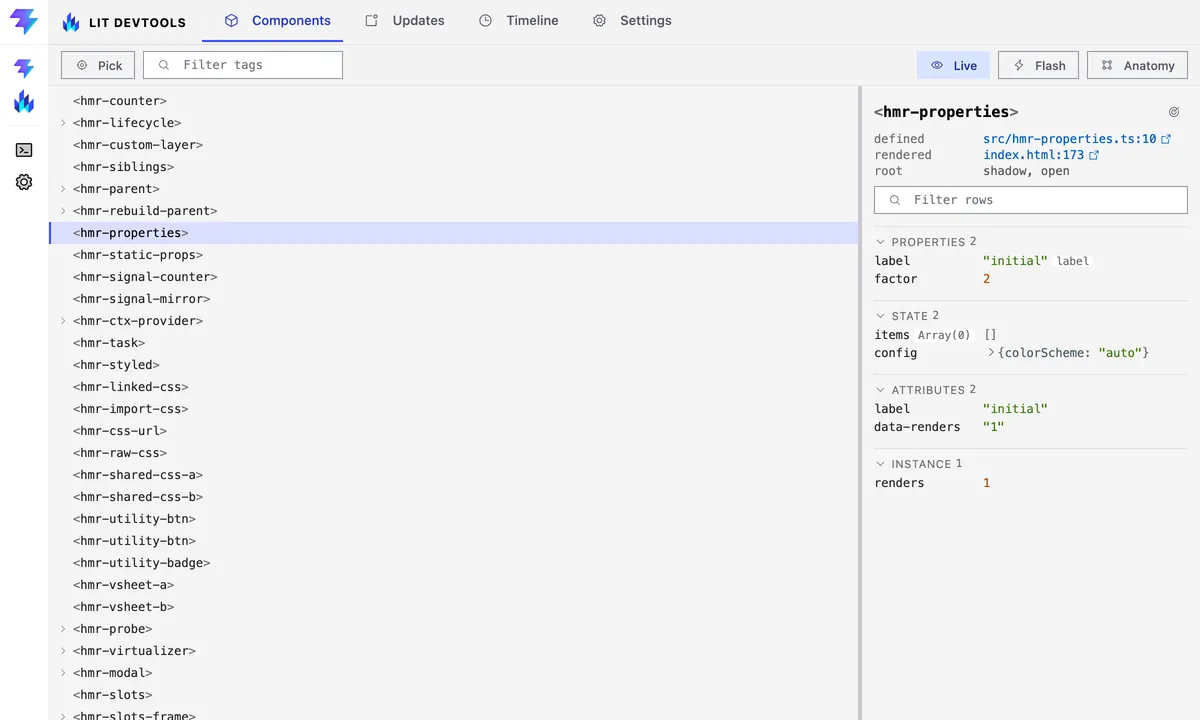
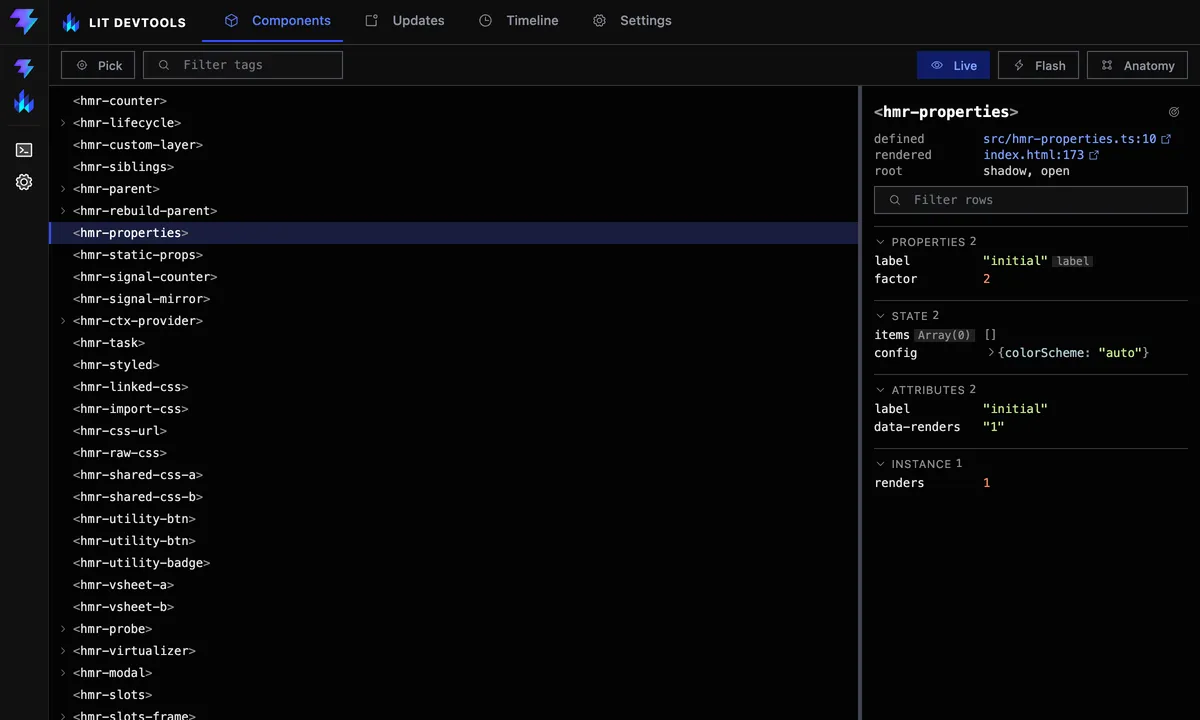
The panel opens on Components and carries four tabs.
- Components lists every Lit element on the page with its reactive state, and needs no recording. See Inspect live components.
- Updates answers which component re-rendered, how often, and why. See Find out why a component re-rendered.
- Timeline records lifecycle, render and input events in order. Press ▶ Record, click around for ten seconds, then press ⏹ Stop. See Record and read the timeline.
- Settings shows the resolved configuration and overrides part of it live.
Change settings live
Section titled “Change settings live”The Settings tab shows what the plugin actually resolved: litPlugin()
options on top of LIT_PLUGIN_* environment variables on top of the defaults.
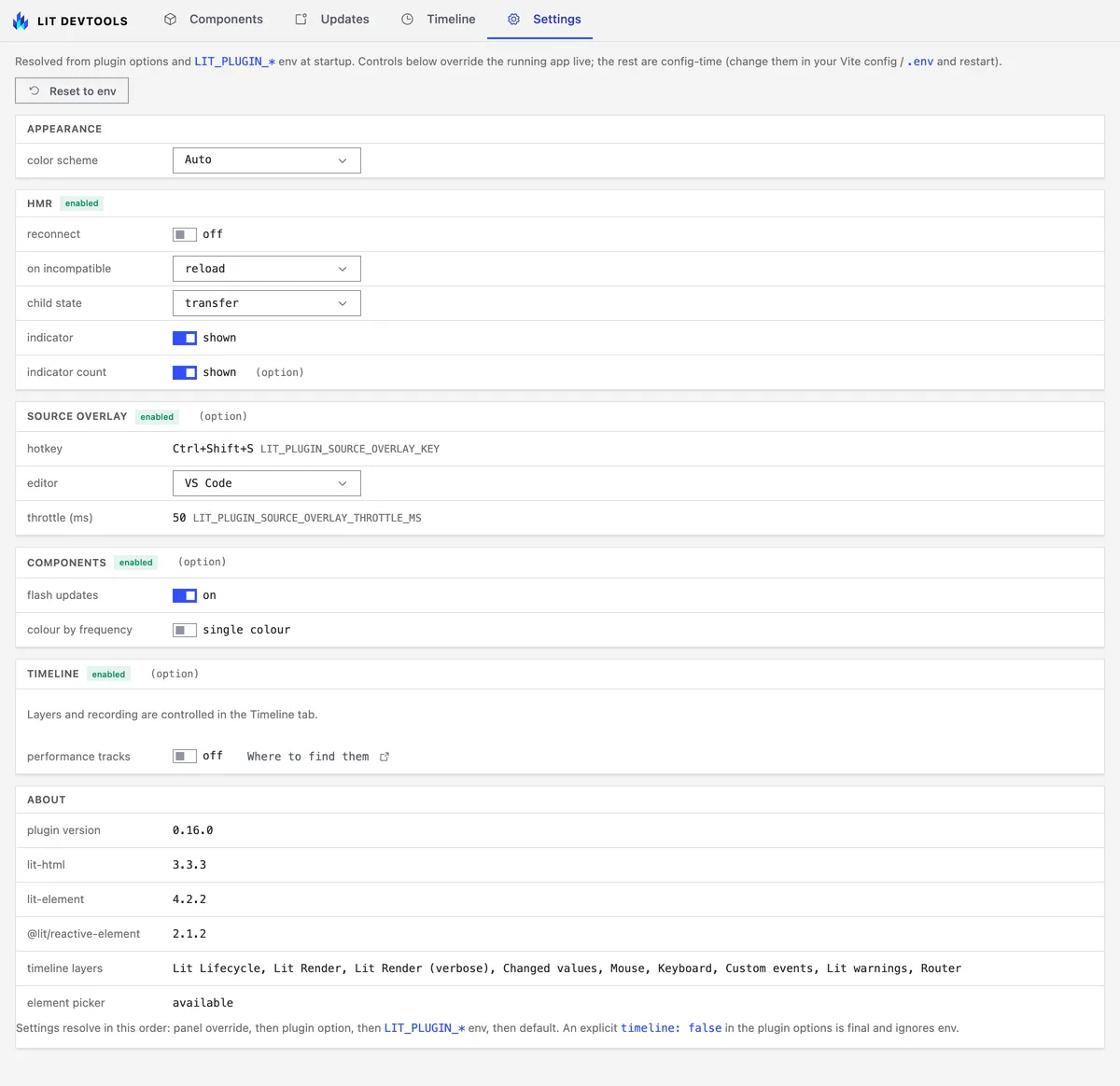
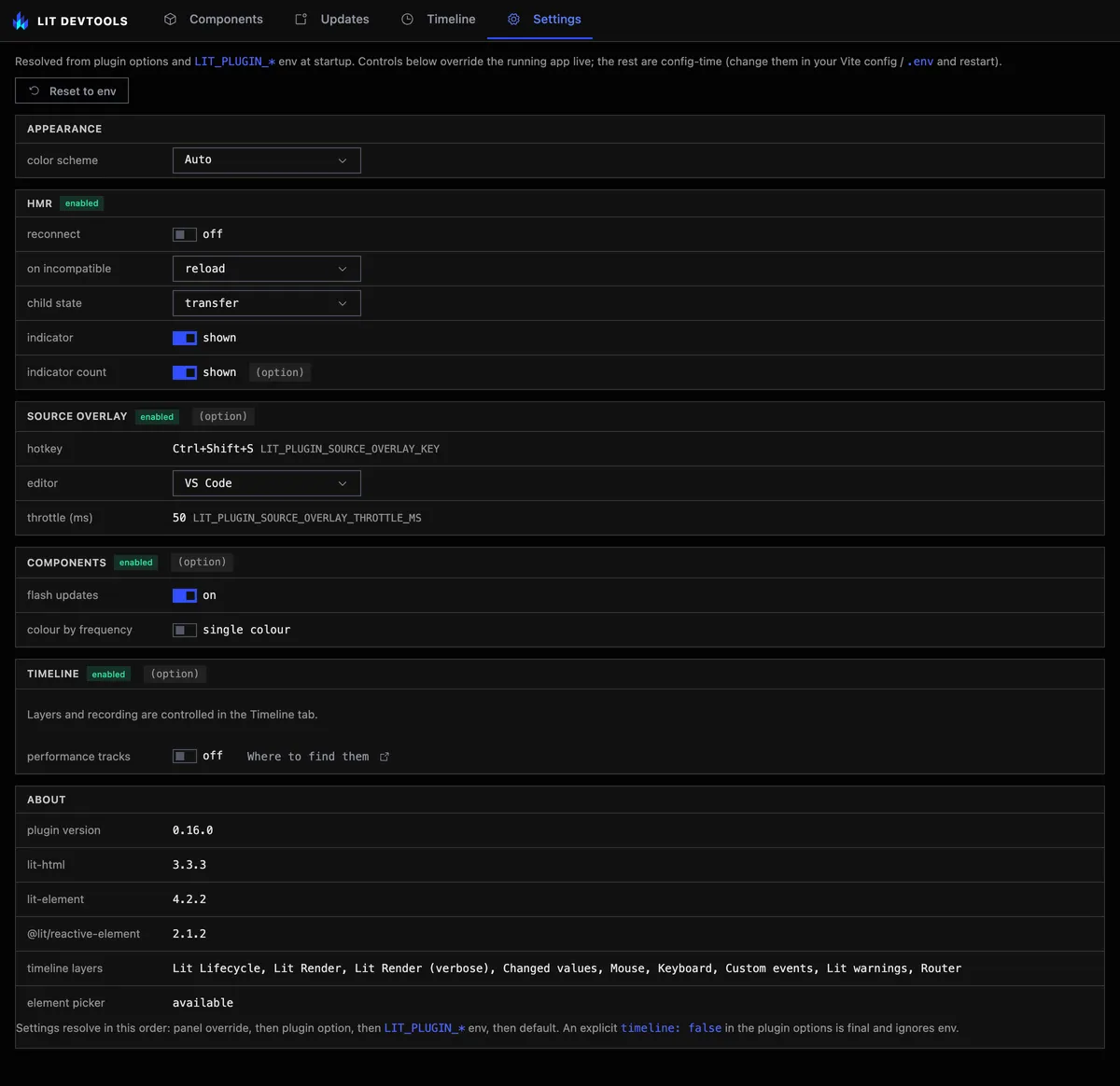
The HMR behaviour, the source-overlay editor and the Components tab’s own
toggles are editable there. A change reaches the running page at once, with no
dev-server restart and no edit to vite.config.ts. Reset to env drops your
overrides and puts the resolved values back.
A value you set carries its origin in parentheses: (option) for
litPlugin(), (env) for a LIT_PLUGIN_* variable. So Zed (env) means the
editor came from your .env. A value with neither is the built-in default.
The same goes for each section’s enabled or disabled pill, so HMR disabled (option) means litPlugin({hmr: false}) turned it off. Open a dropdown and the configured choice says where it came from, default
included. When env or an option set it, the built-in default is tagged
default too, so warn env sits beside reload default. Hovering a
setting’s name explains it and gives its default.
An overridden row names
the value it replaced, such as env: Zed, and the small × beside it
resets just that row. A custom editor object from litPlugin()
shows as Custom (option) and can’t be switched from the panel.
If the value underneath an override has changed since you made it, say you
switched the editor to Cursor and .env now says Zed, the row adds a line:
Config changed since you overrode this: was VS Code, now Zed. Reset drops
the override so the new value applies. Keep leaves it in place and stops
the reminder until the config changes again. Overrides saved before this
existed have nothing to compare against, so they never show it.
A setting whose feature is off at config time stays read-only. Its runtime was never injected into the page, so there is nothing there to change.
Your overrides and the panel’s light/dark choice persist per developer and never touch the repository; DevTools architecture explains where they live and why there are two copies.